Airline Website & Design System - Fall 2025
NE Air
Overview
NE Air is a fake airline ticket ordering website, dynamically prototyped and designed in Figma. The prototype takes the user through the basic steps of ordering a ticket, such as choosing their locations, dates, passenger number, luggage, choosing their ticket, and payment.
Objective
To prototype an airline ticket ordering flow in Figma using advanced prototyping and variables, while adhering to a self-imposed design system. Then, to create said design system and format the Figma file in a professional manner.
Planning
Planning Tickets and Flights
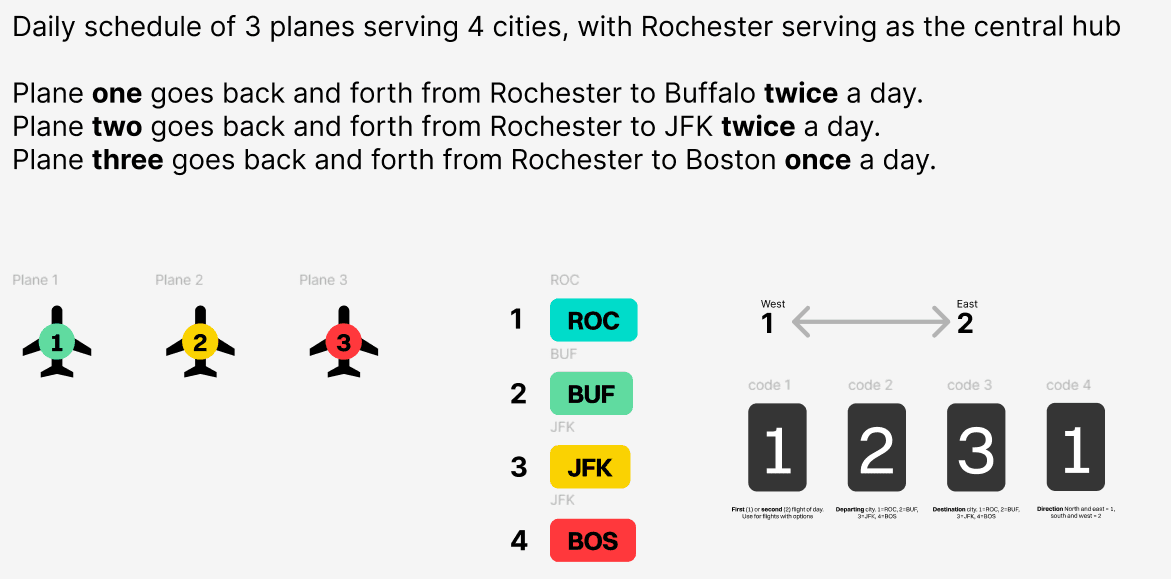
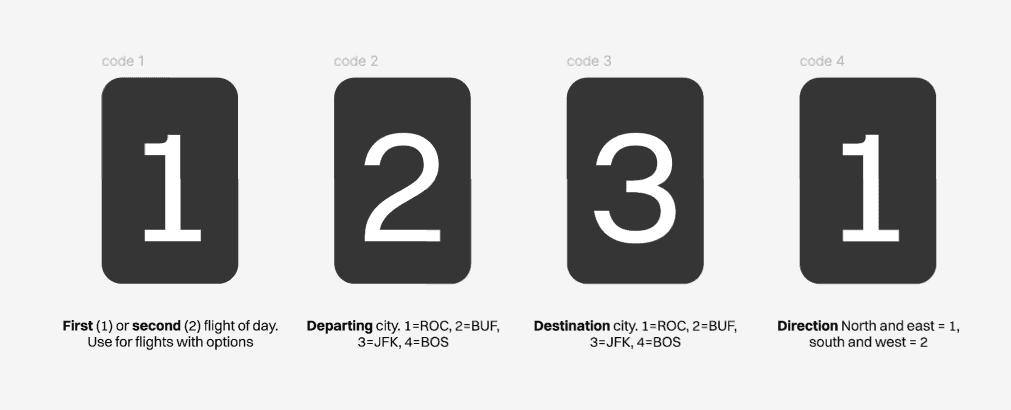
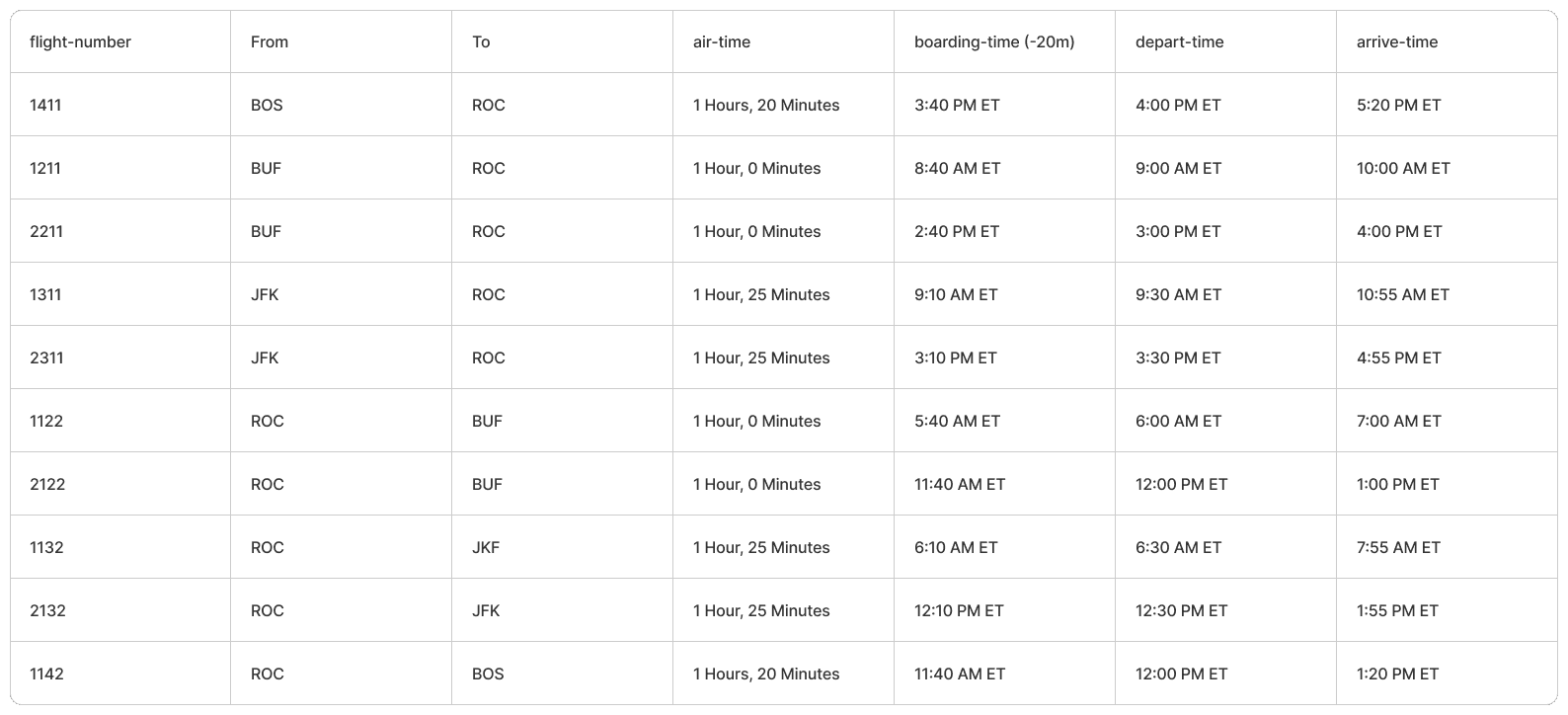
For this prototype to fully work inside of just Figma, I needed to plan out each flight, how often the flights depart, and all of the relevant times to record. To make this system simple, I chose to use one city out of four to act as a "hub" for all of the cities. Connecting flights would travel through that city to reach another. So for example, to get from Buffalo to Boston, there would be two flights; one from Buffalo to Rochester, and one from Rochester to Boston.
Variables
Booking, Airline, & Flight Information
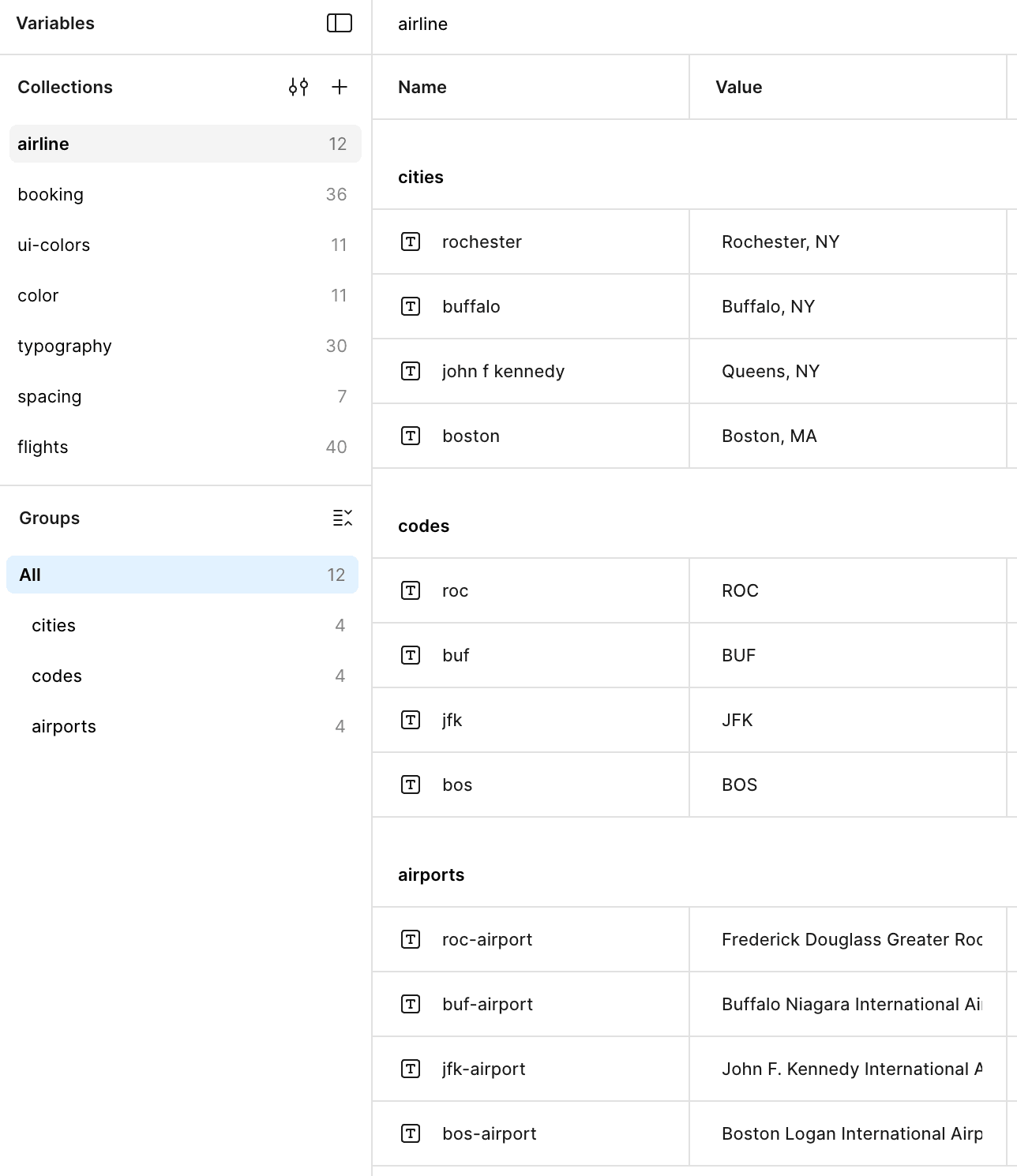
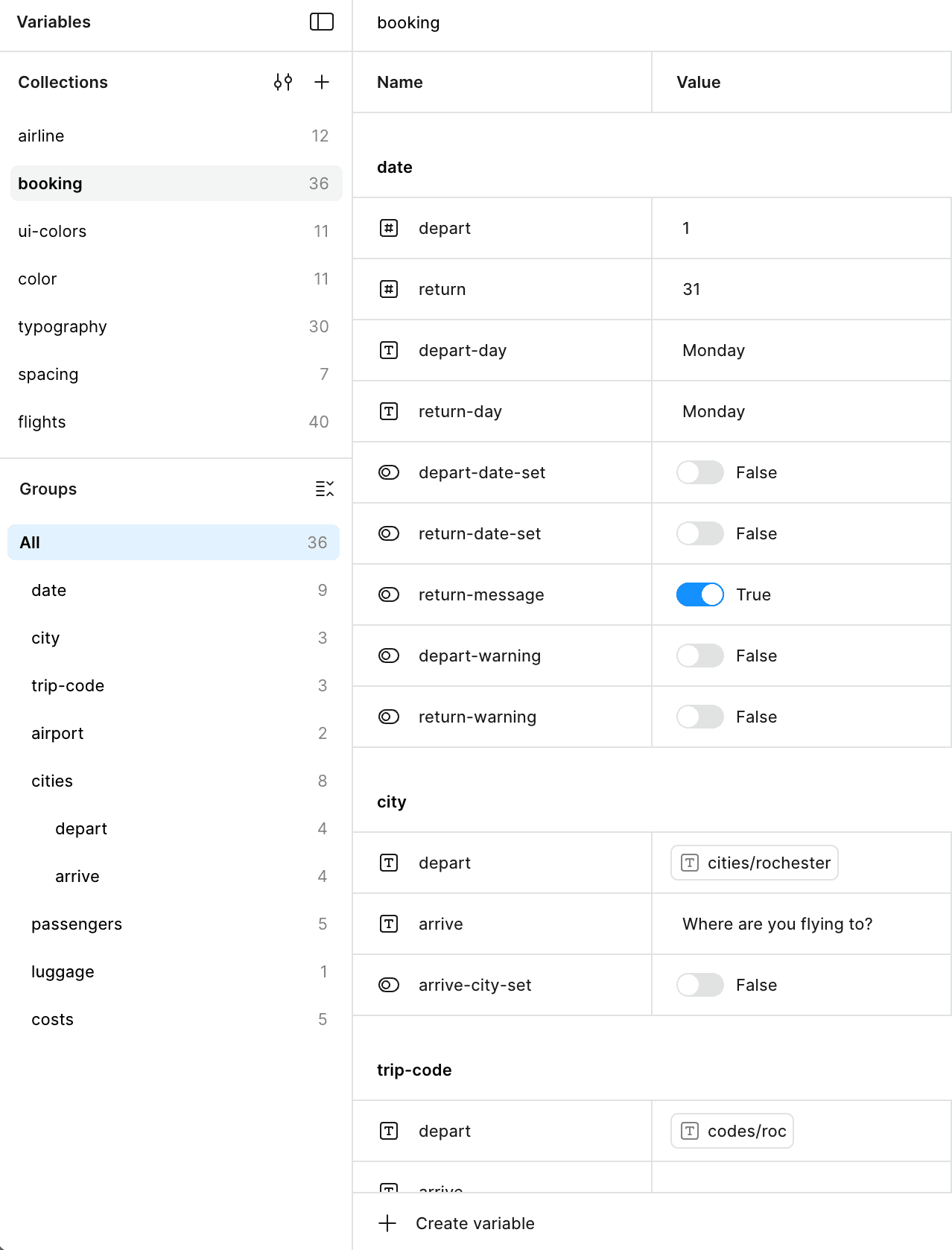
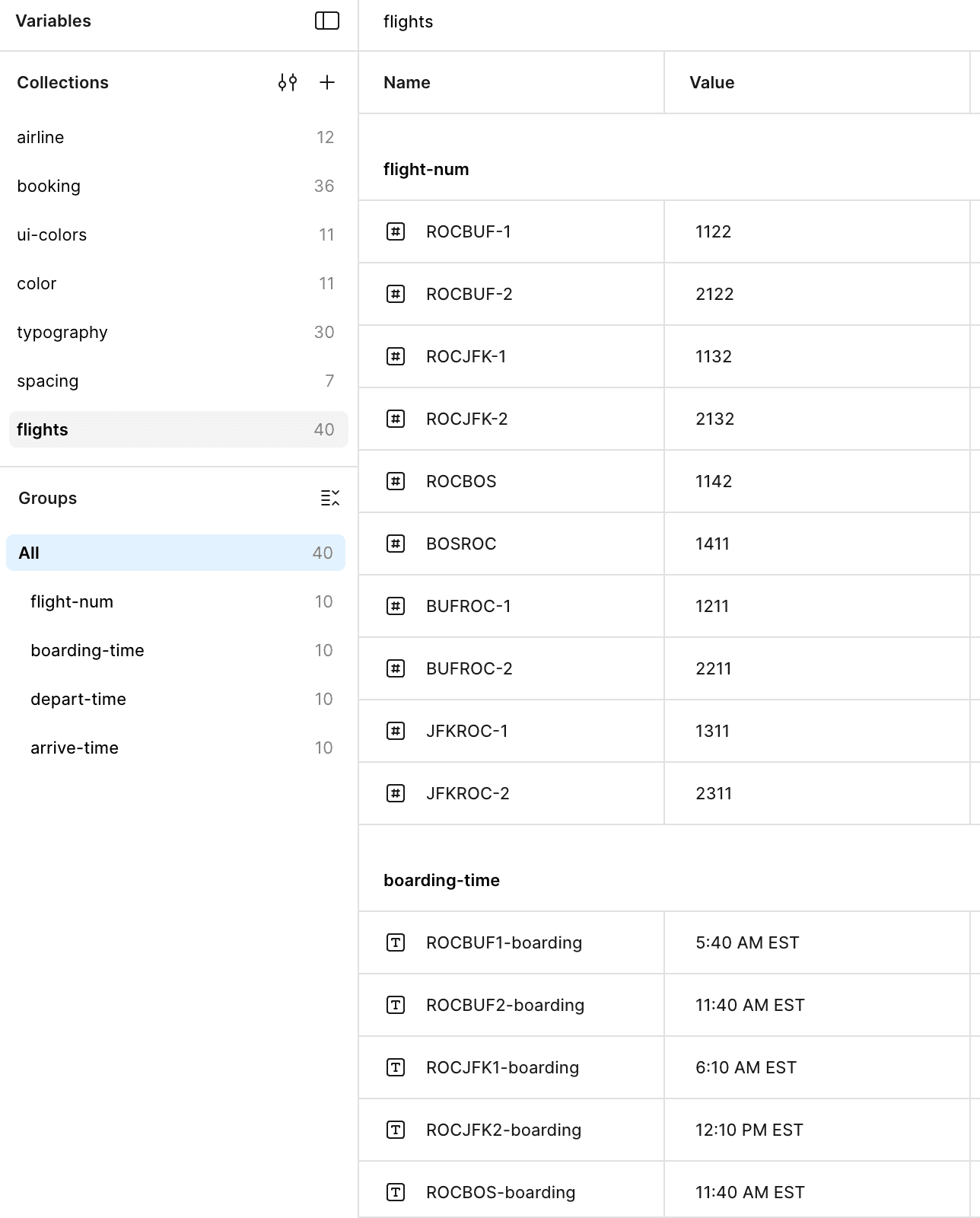
First things first, I set up all of the information of flights, airlines, and booking information into different collections in my variables. This would allow me to use advanced prototyping to determine which information would be displayed when the user interacted with different components, such as selecting a ticket or choosing the date. This included depart and return dates, airline information, flight codes and times, and other necessary information that would be displayed for the confirmation screen.
Typography & Spacing
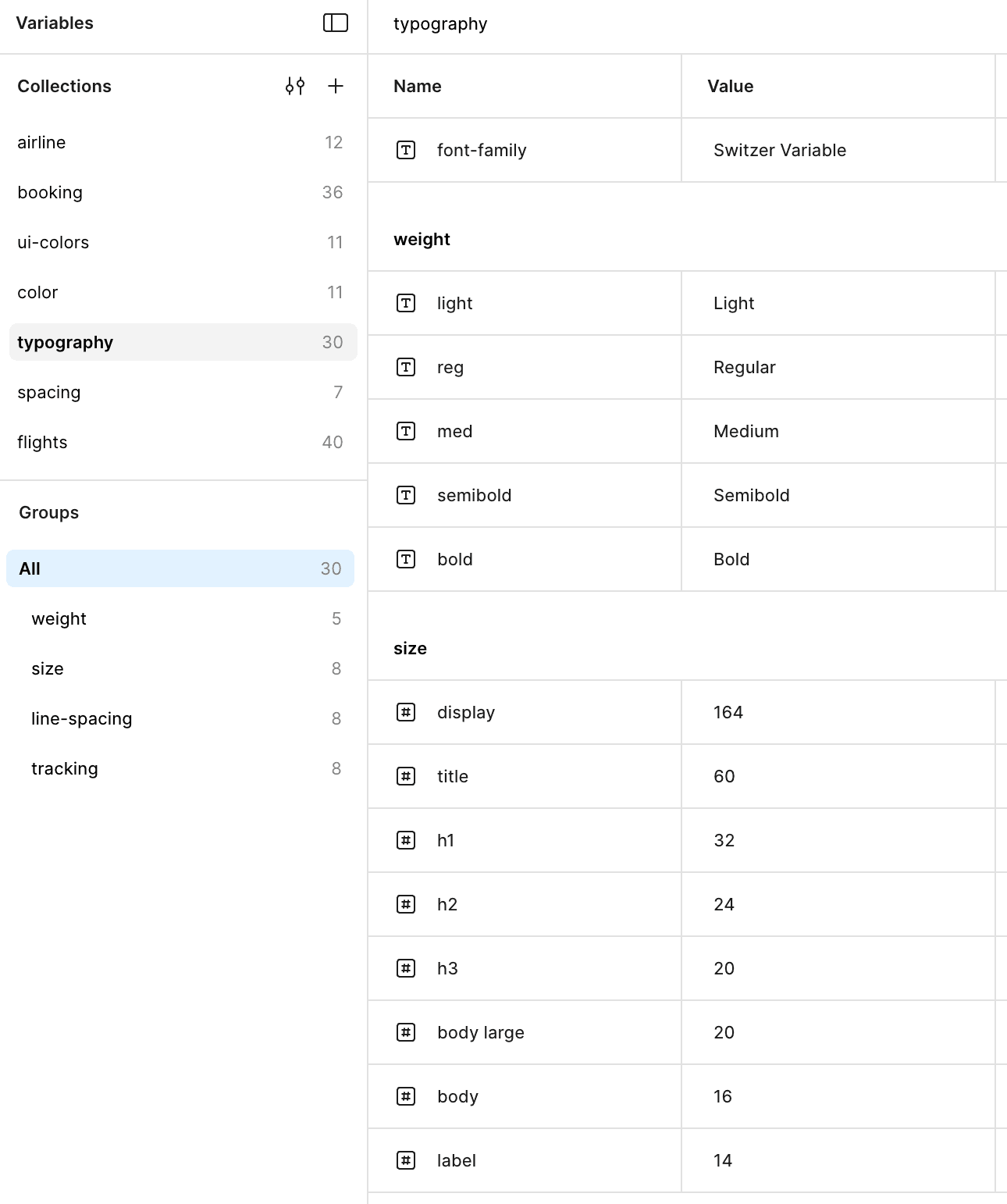
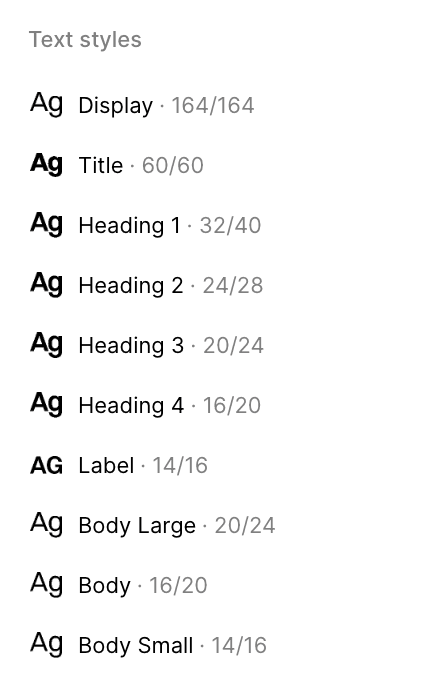
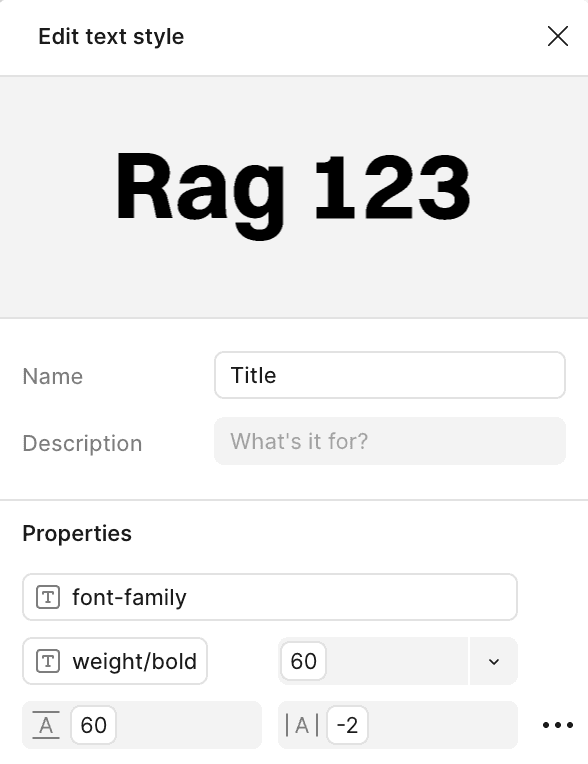
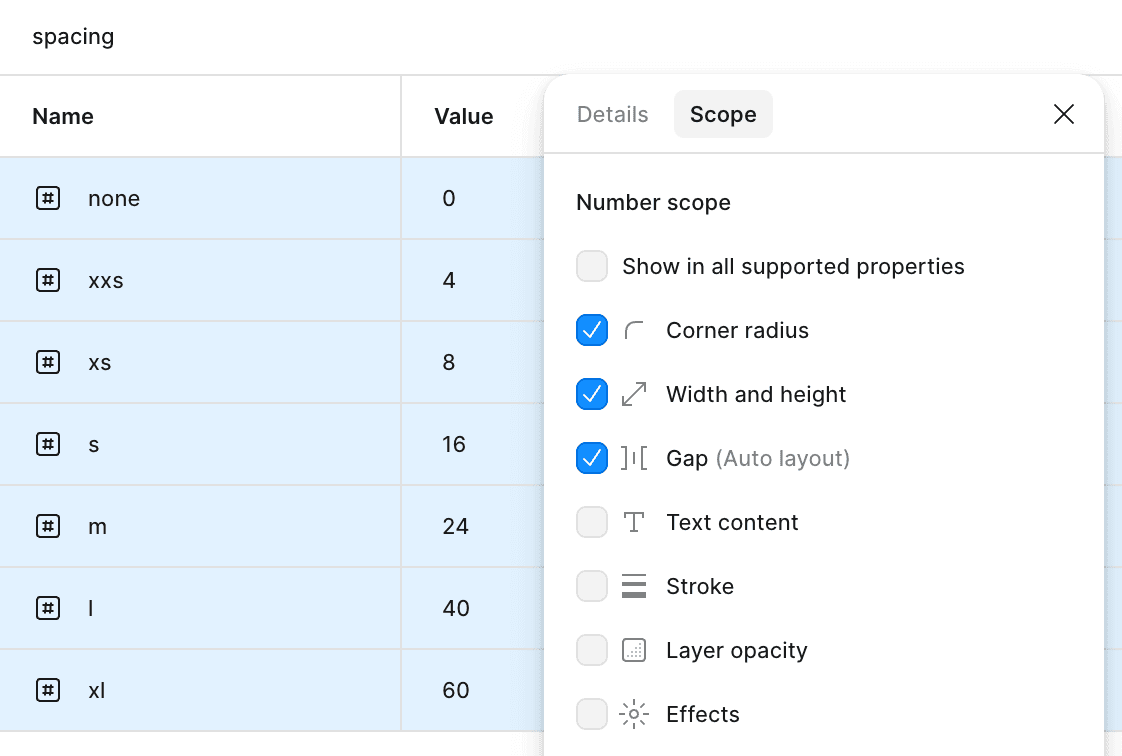
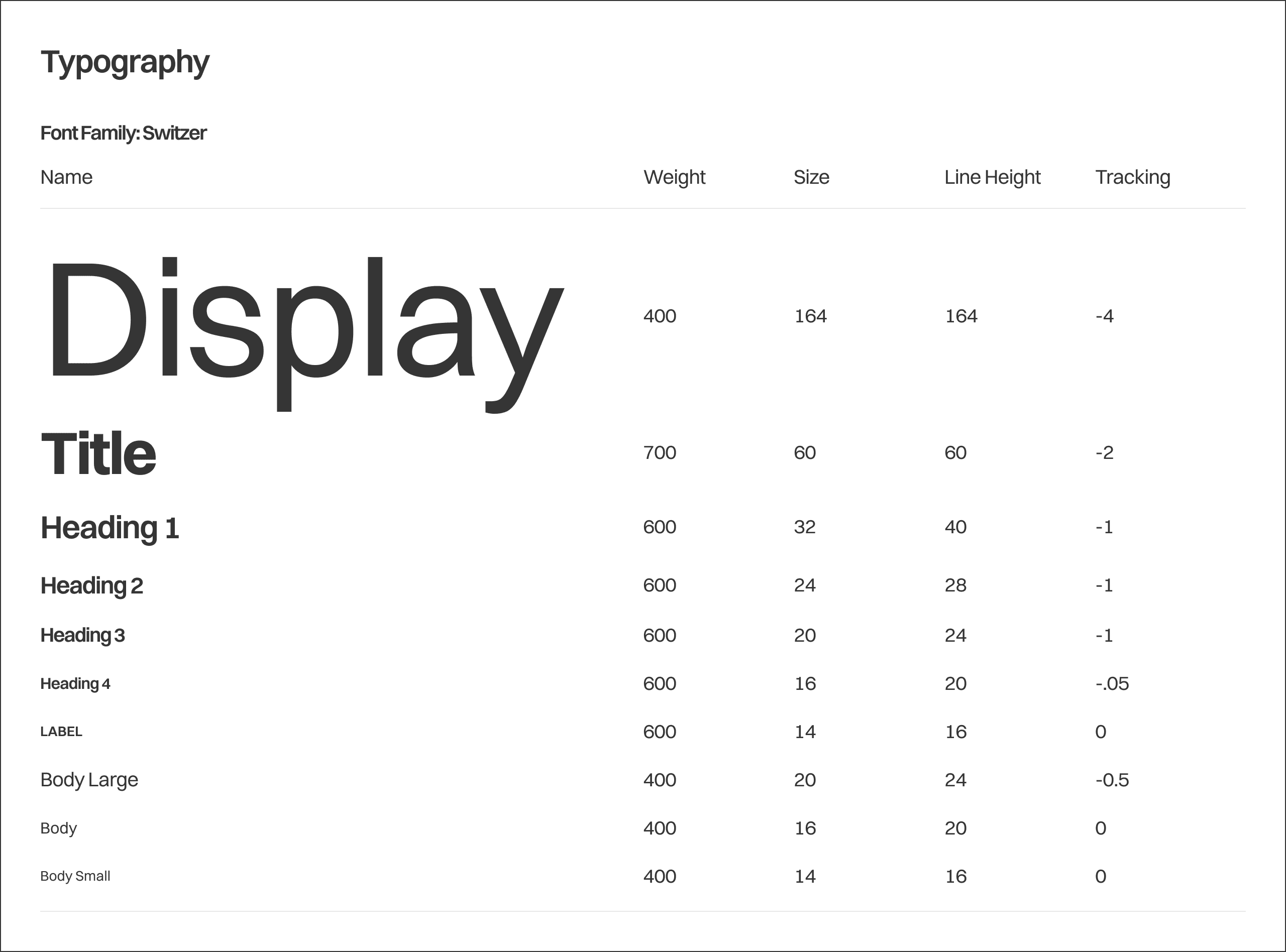
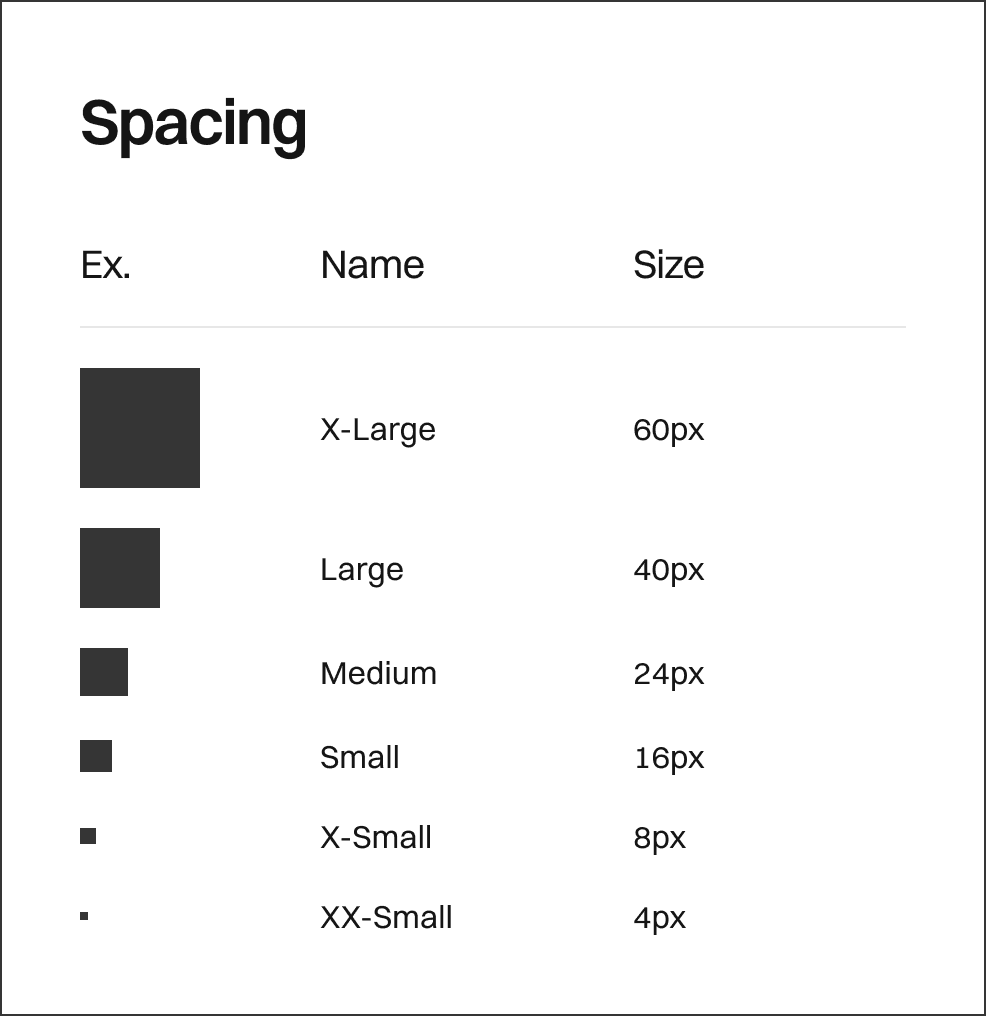
After experimenting with a couple different layouts, I began to make variables for typography, spacing, and color. For typography, I defined all of the necessary variables, including weight, size, line spacing, and tracking for all of the different text styles I thought I would need. I also did this for spacing, defining spacing measurements from XXS to XL. Using these measurements as variables would allow me to go back and change values if needed, and keep consistent spacing when using Auto-Layout, so I didn't have to remember the values. Instead, I could just apply variables to my spacing and typography.
I also made sure to scope all of my variables, including the previously made variables to make sure that they could only be used for their respective properties. Therefore, when applying variables to properties in my design, I didn't have to dig through 100+ variables for the right one. Once that was done, I created text styles for all of text, using the variables I had set up.
Color & Logo
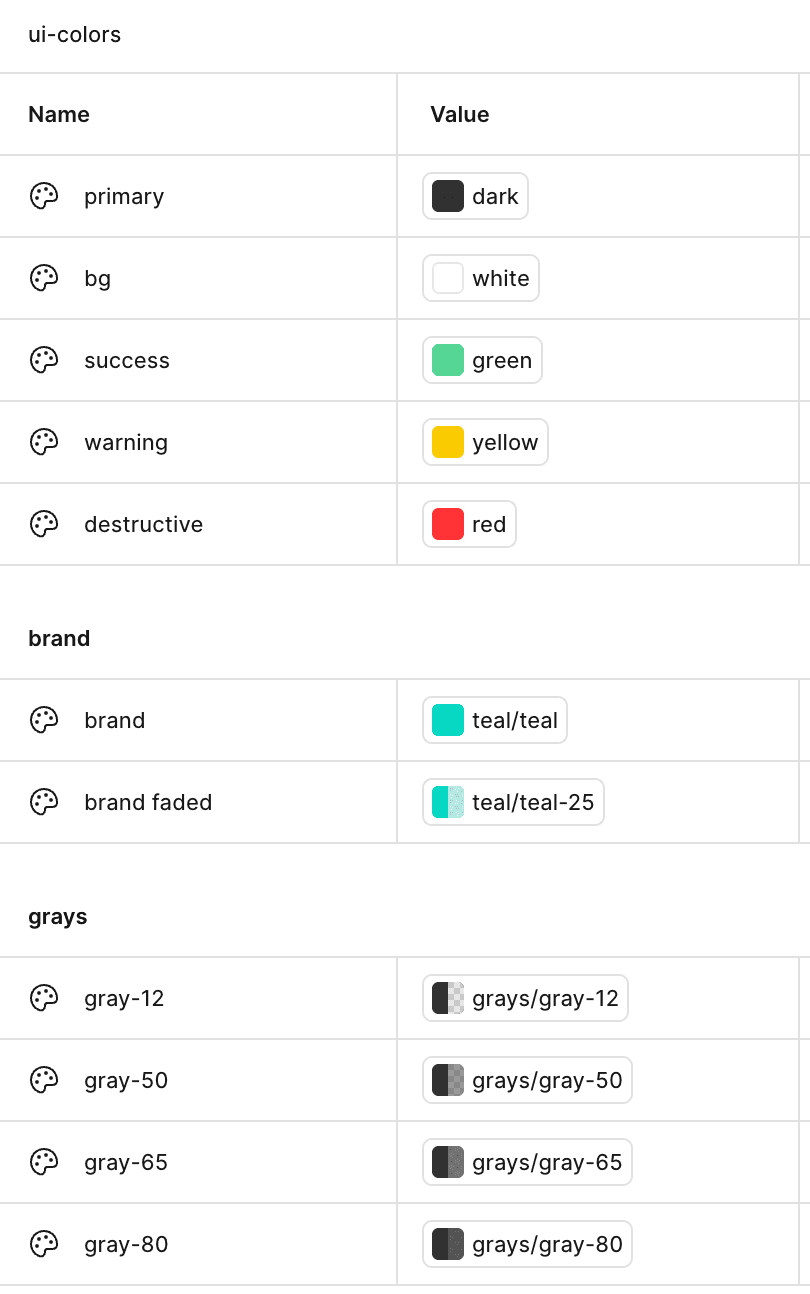
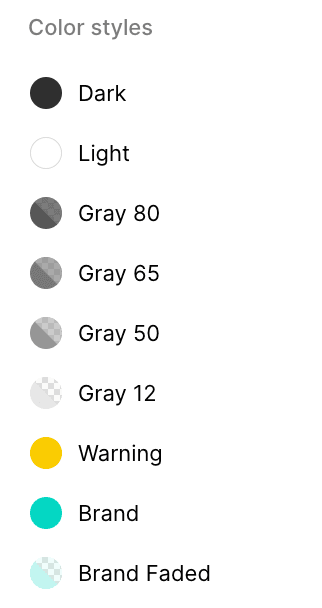
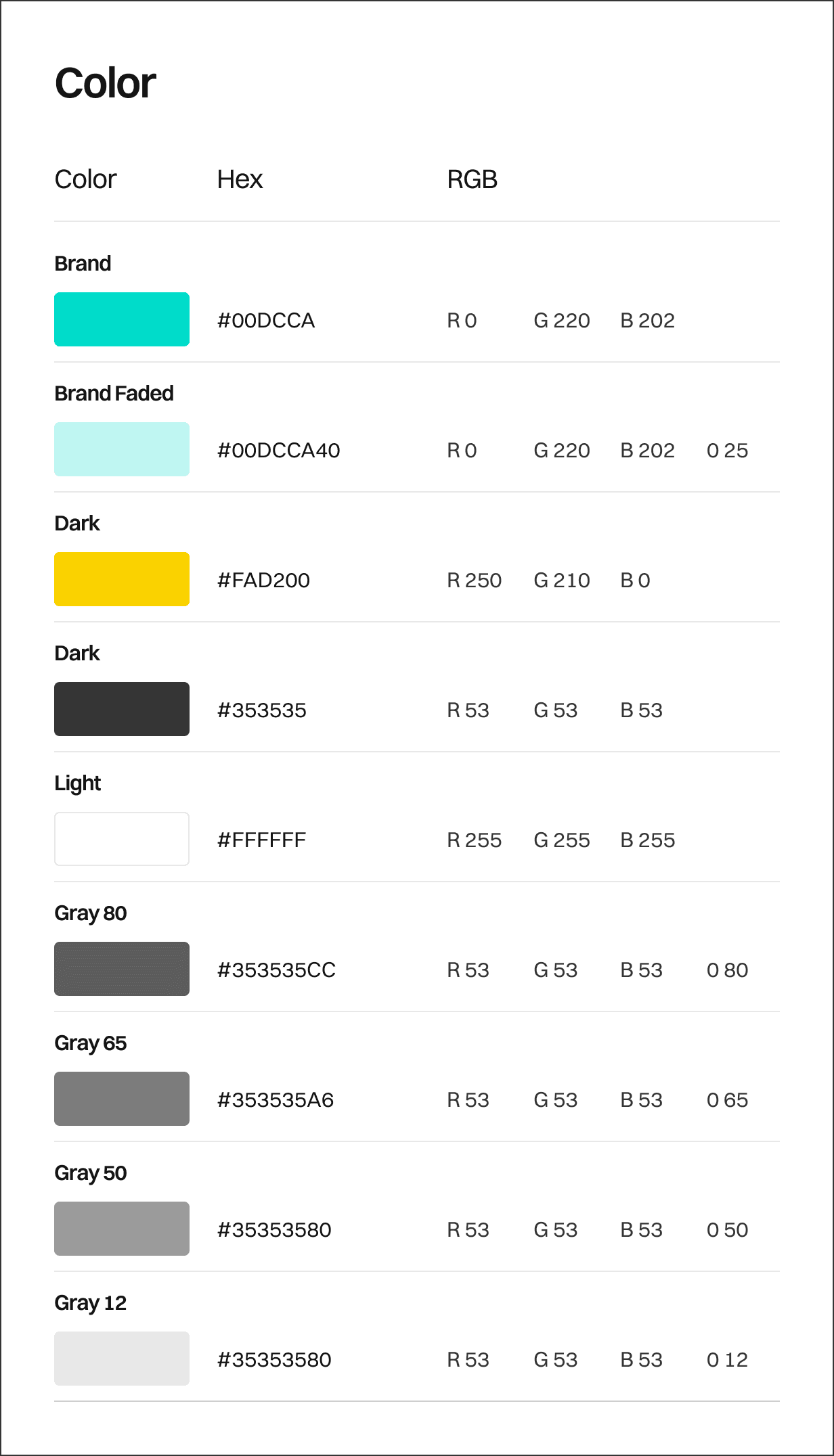
Finally, I set up my color variables. Once again, this would allow me to mass-change any values that didn't fit my vision or didn't work within my design, as well as keep my design cohesive.
I first began to apply my colors to my logo. For my design style, I wanted to keep it super minimal and typography based, with large type as the focal point. I wanted my logo to reflect that, while also having a sense of motion, which is where I came up with the idea below. Definitely not my most creative work, but I think for the design it is part of, it fits really well.
Design & Prototyping
Incremental Design
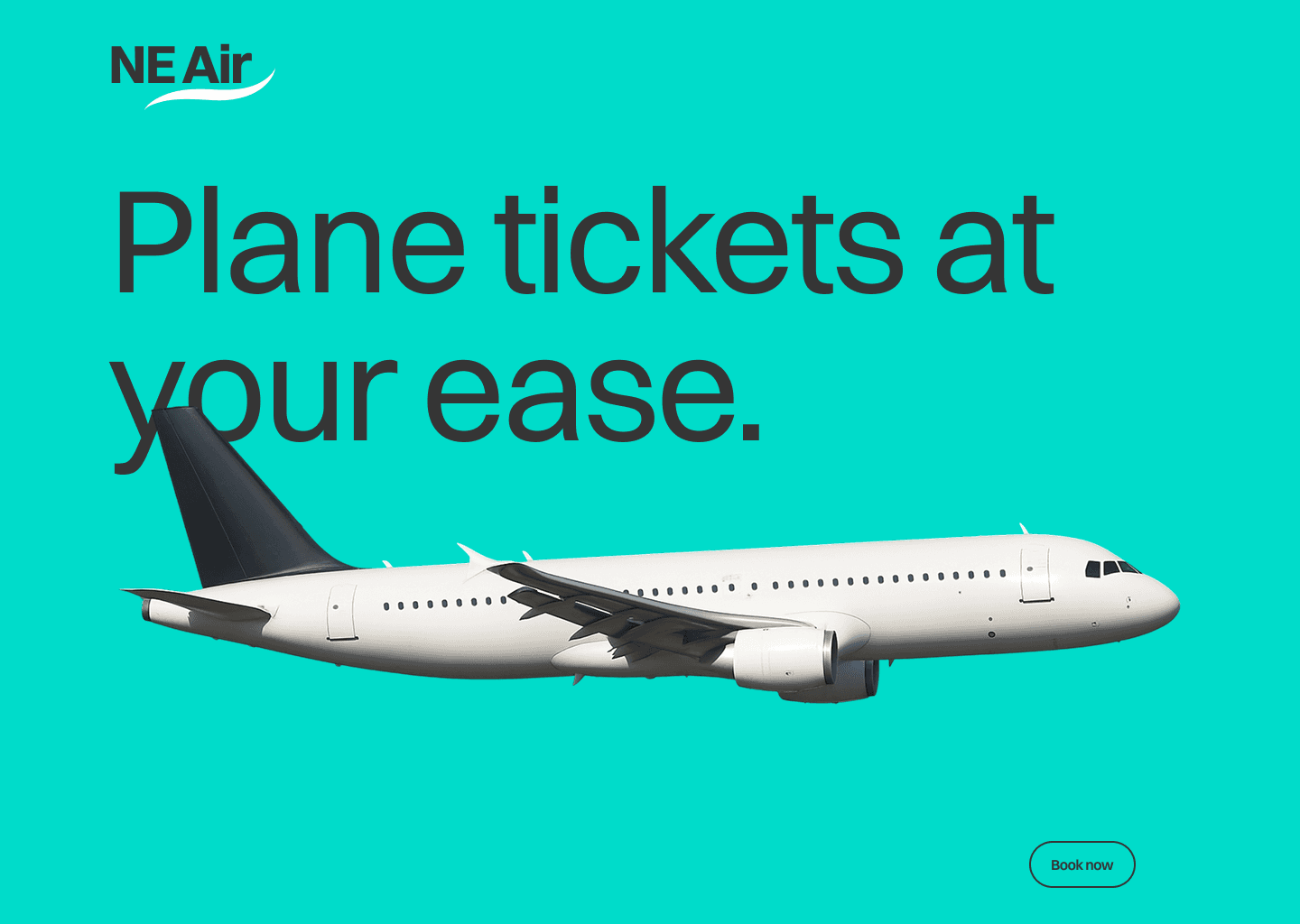
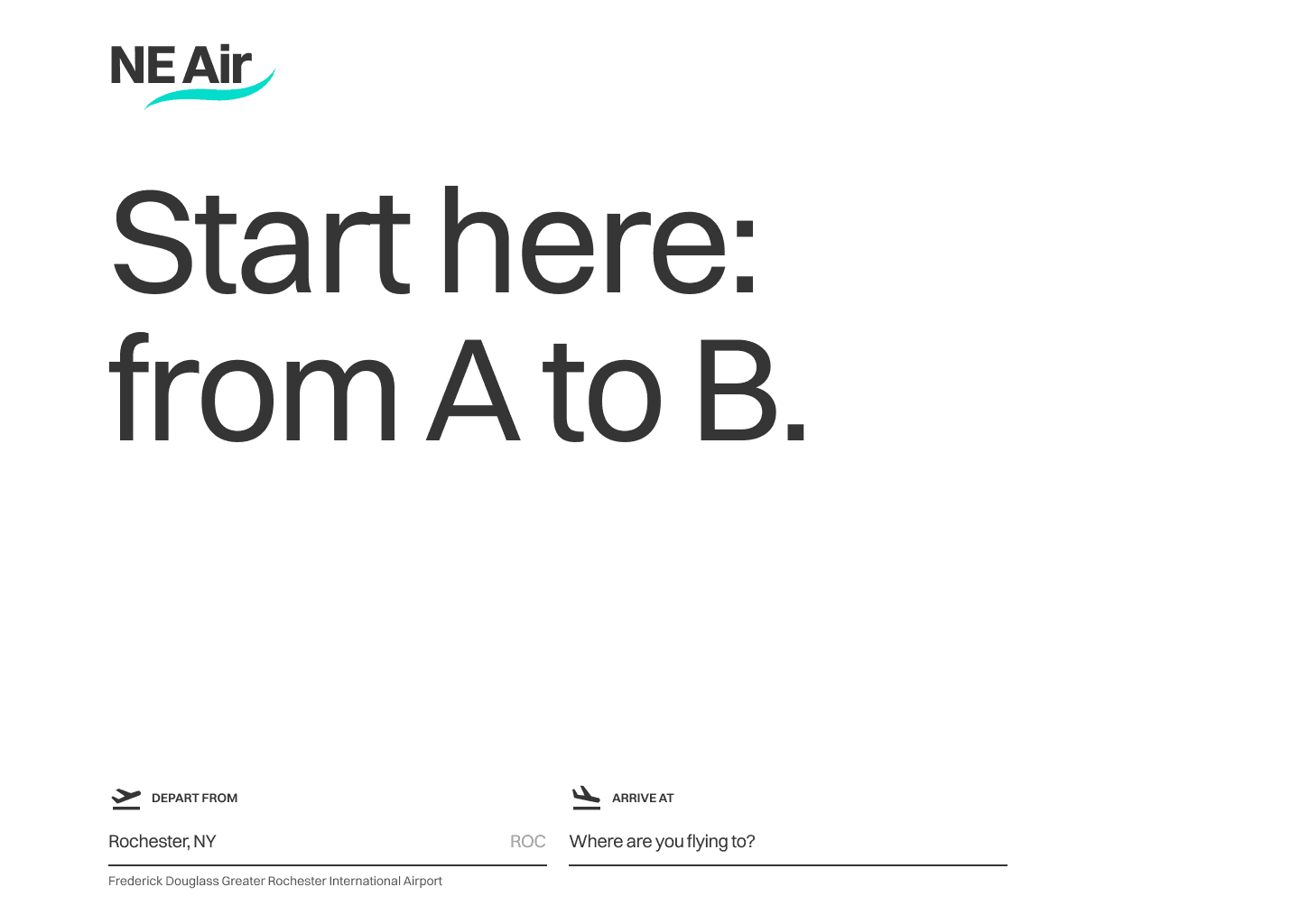
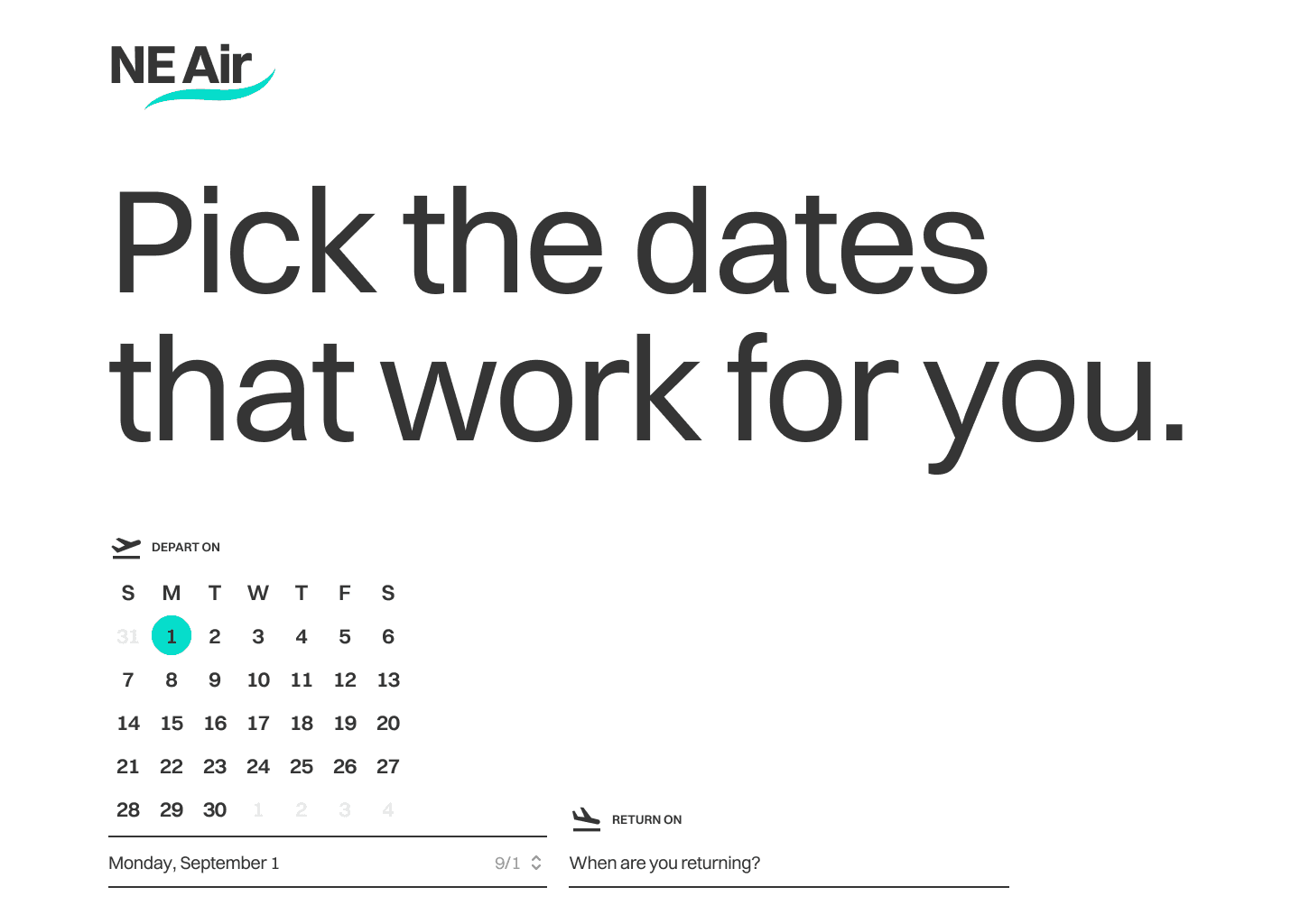
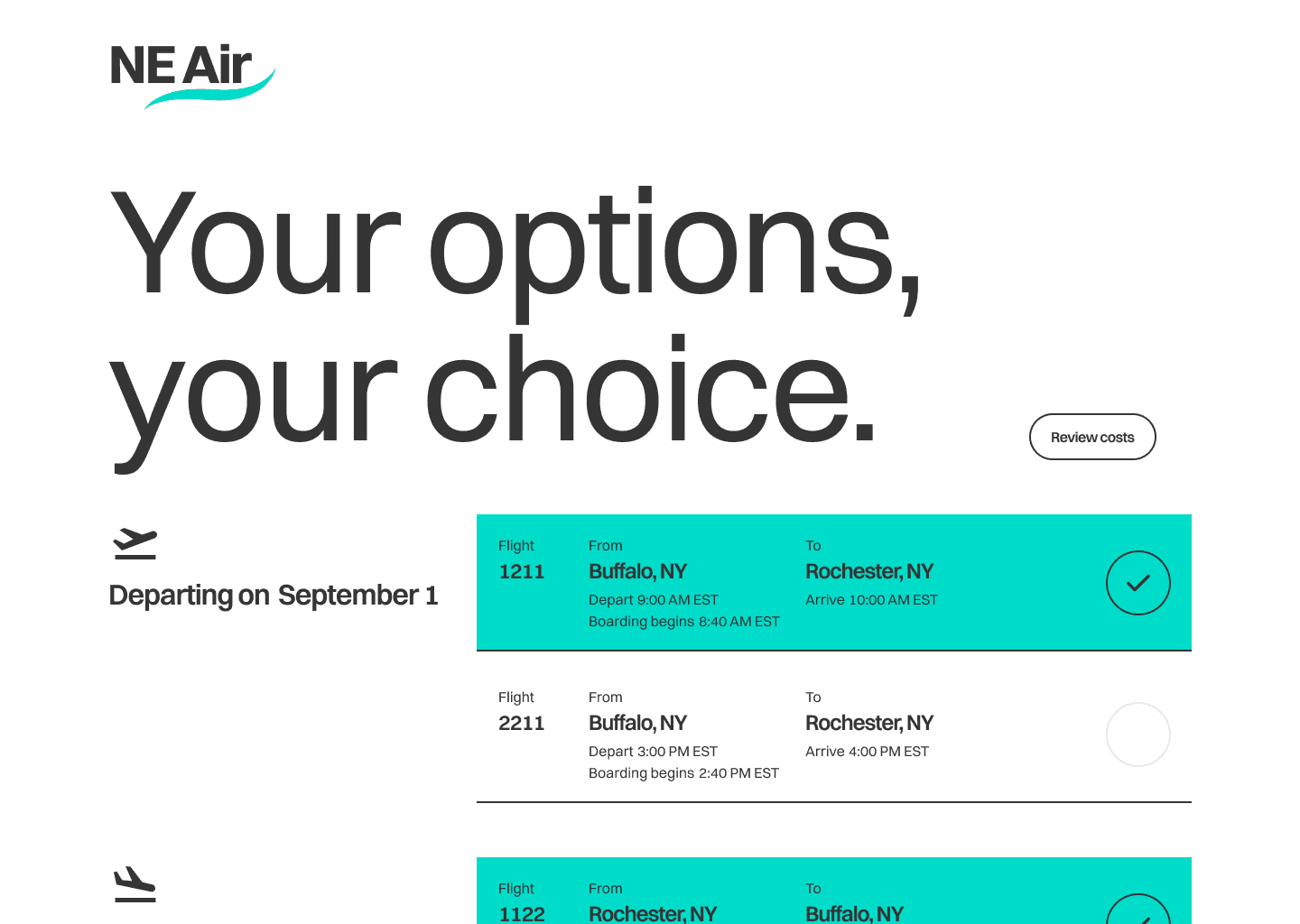
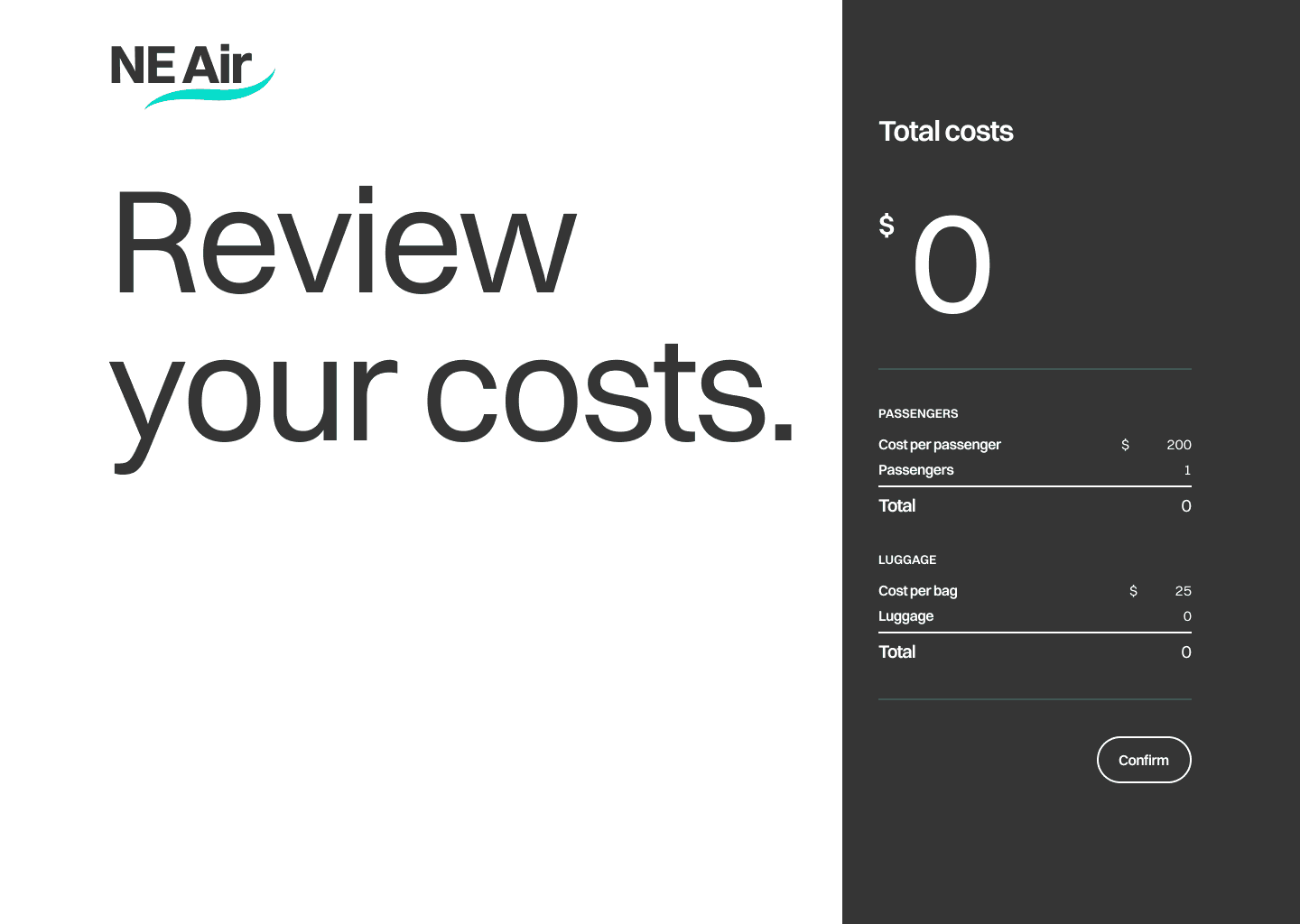
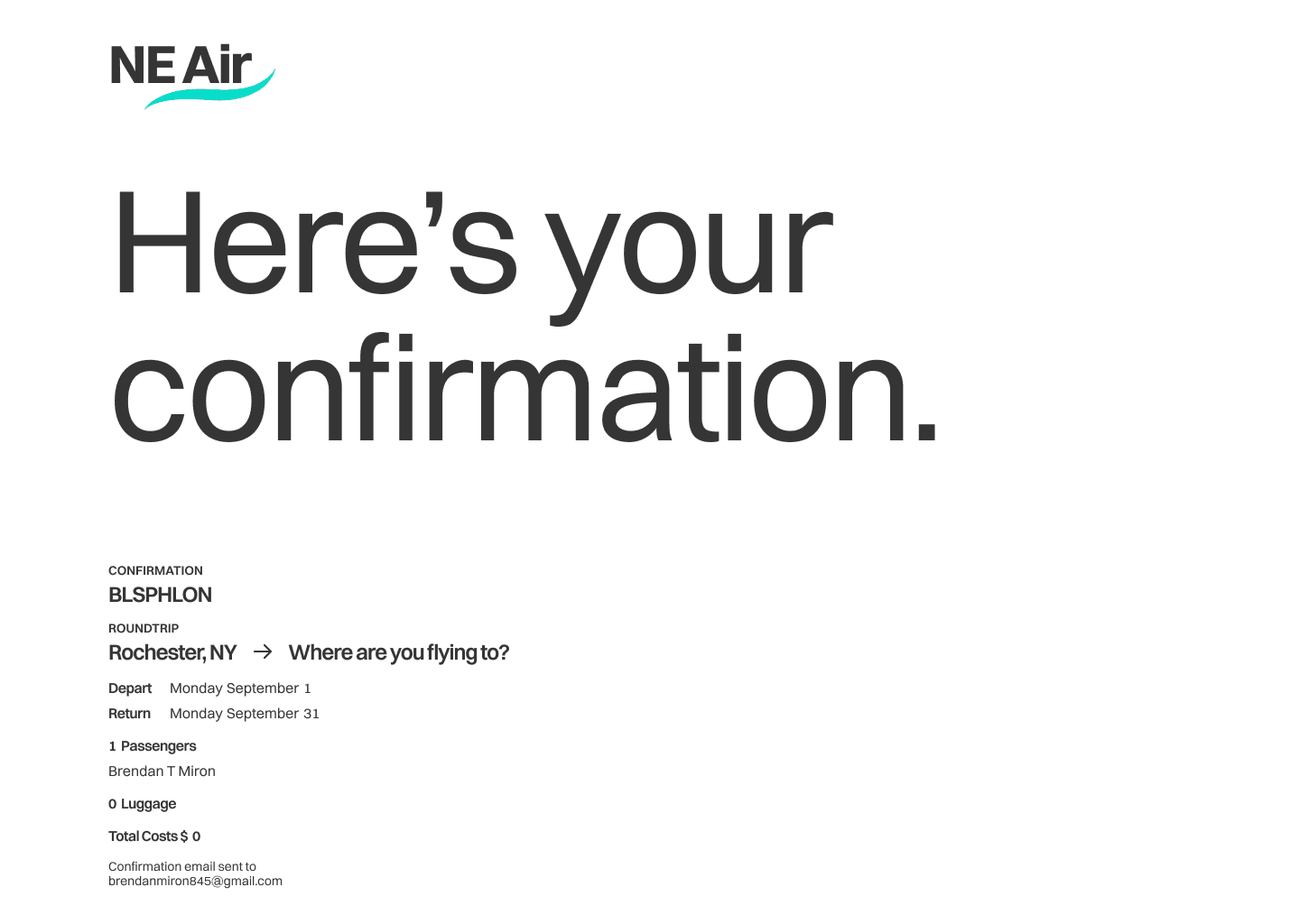
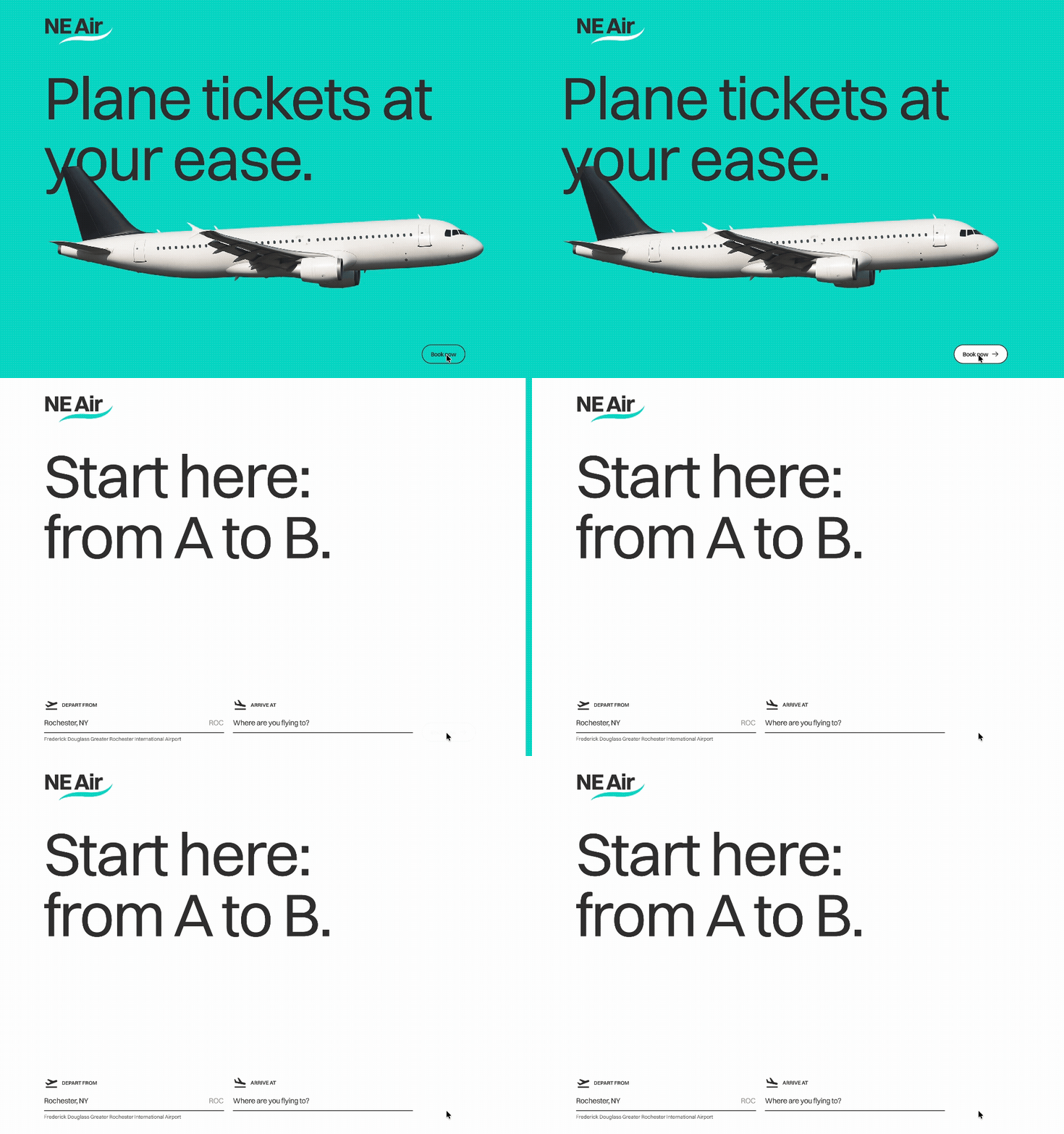
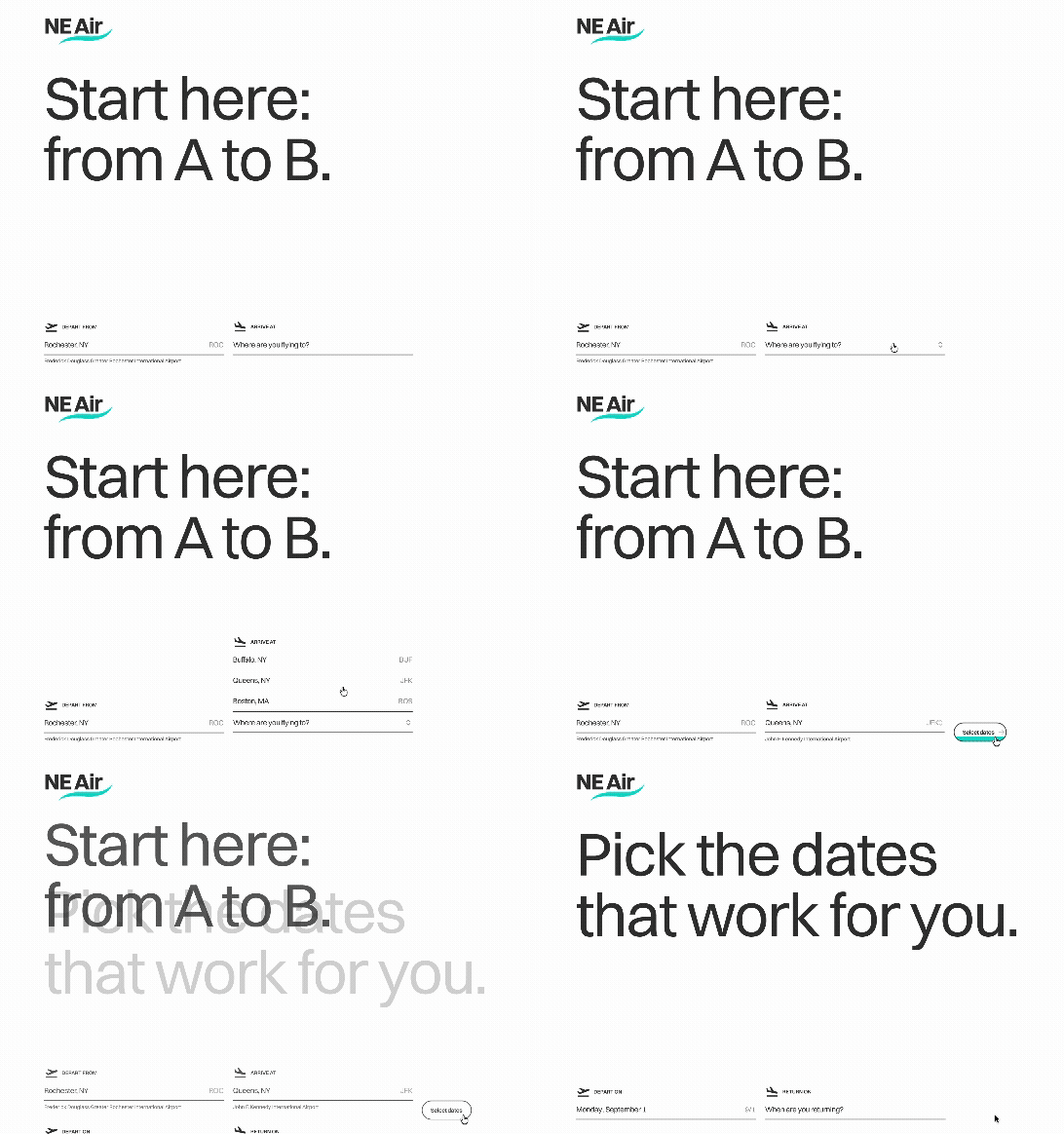
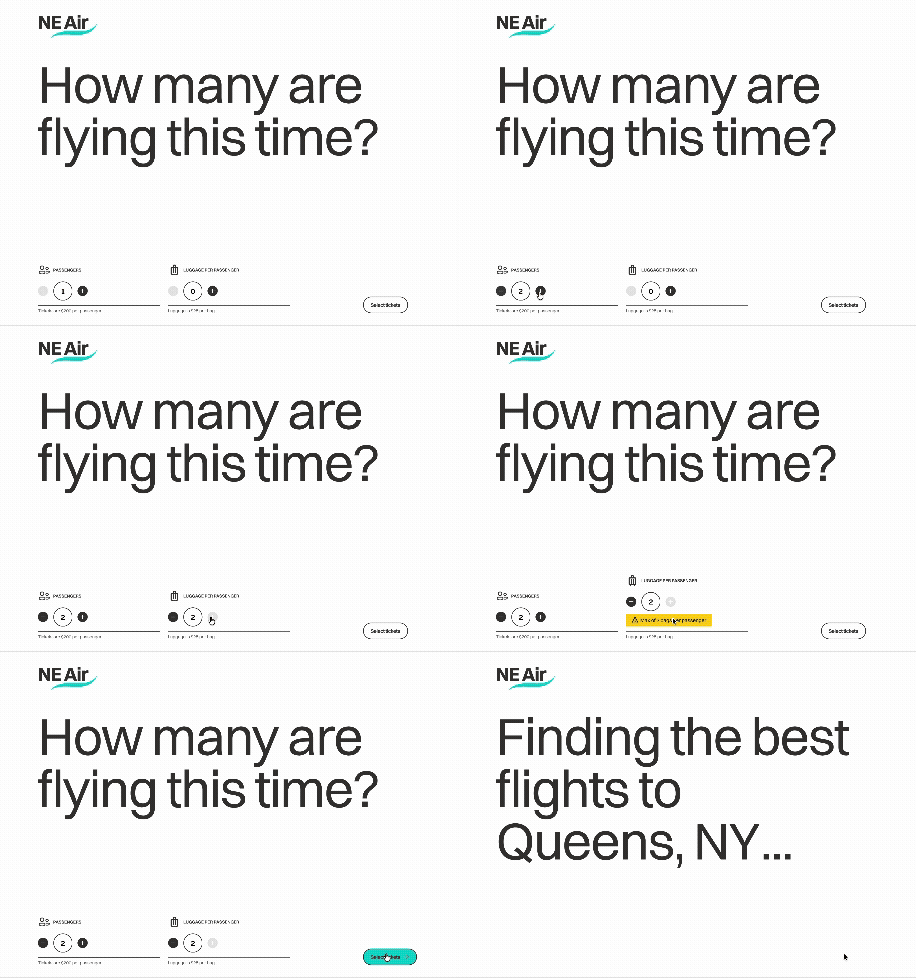
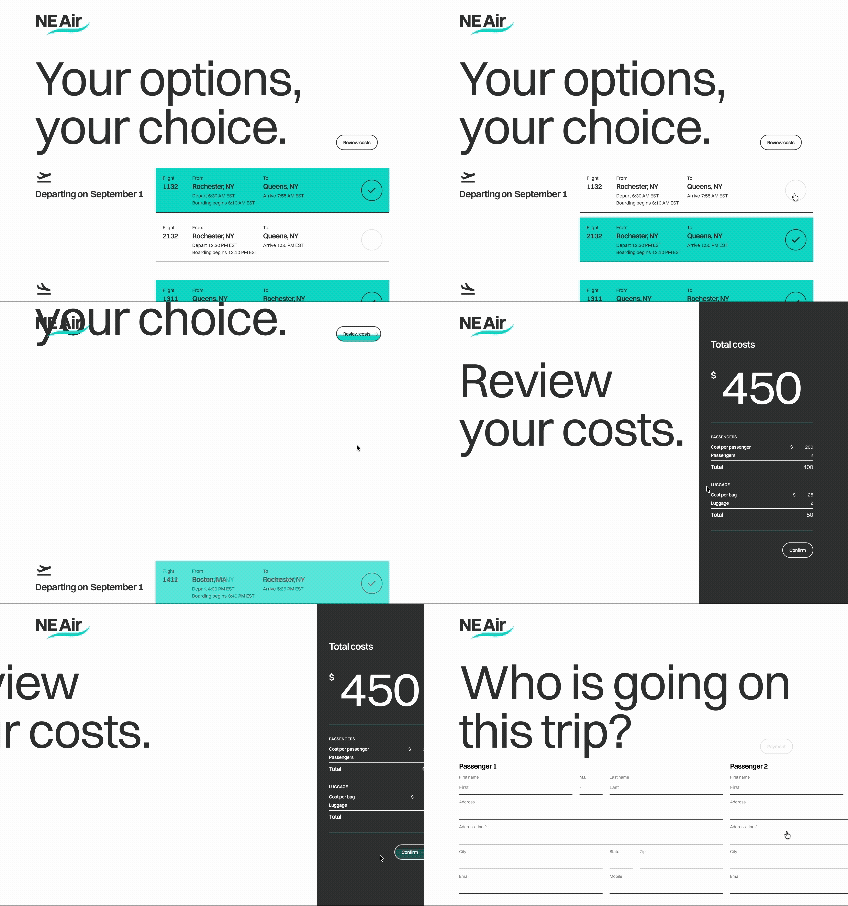
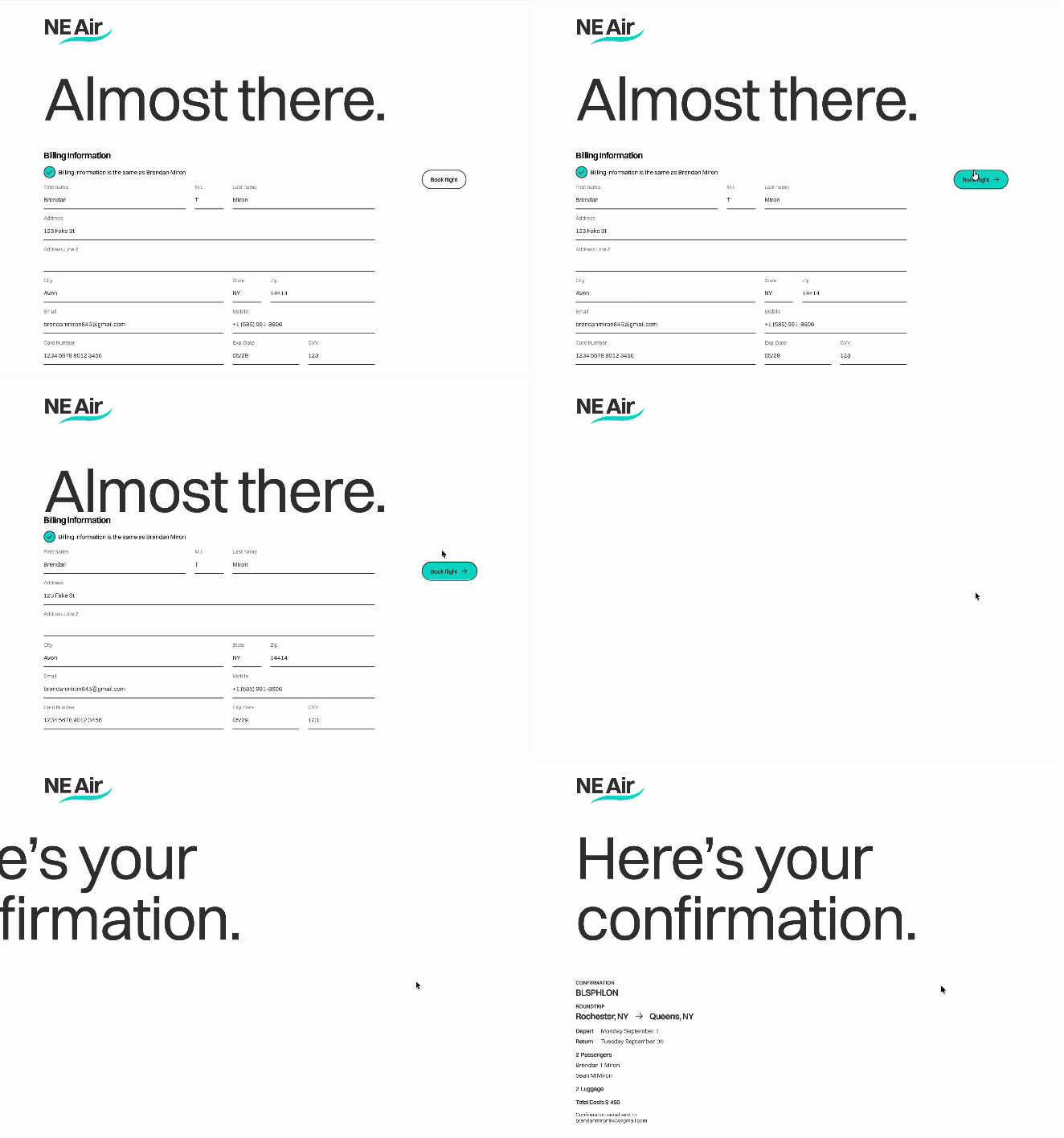
I already had a vision of how I wanted my designs to be laid out, so I just went one screen at a time, designing reusable components as I went along. As I mentioned before, I wanted my style to be minimal, with a large typography focus. Therefore, I put minimal actions on each screen, towards the bottom of the screen, with the general context of the page as large type towards the center of the screen, underneath the logo.
Most of my style revolves around bottom strokes and grayscale typography, only using my brand color for selected states. I think this shows my personal style off well, as you can see on my portfolio. Below are some key screens and components used throughout the flow.
In this specific flow, users are not prompted to go backwards in their process. They also cannot progress until they fill out they next step, which is why there may not be a "Continue" button on the static screen. However, it does appear in the prototype because it is hidden by boolean variables. Ideally, the button would be in a disabled state, and then enable itself when the fields have been properly filled out.
Transitions & Prototyping
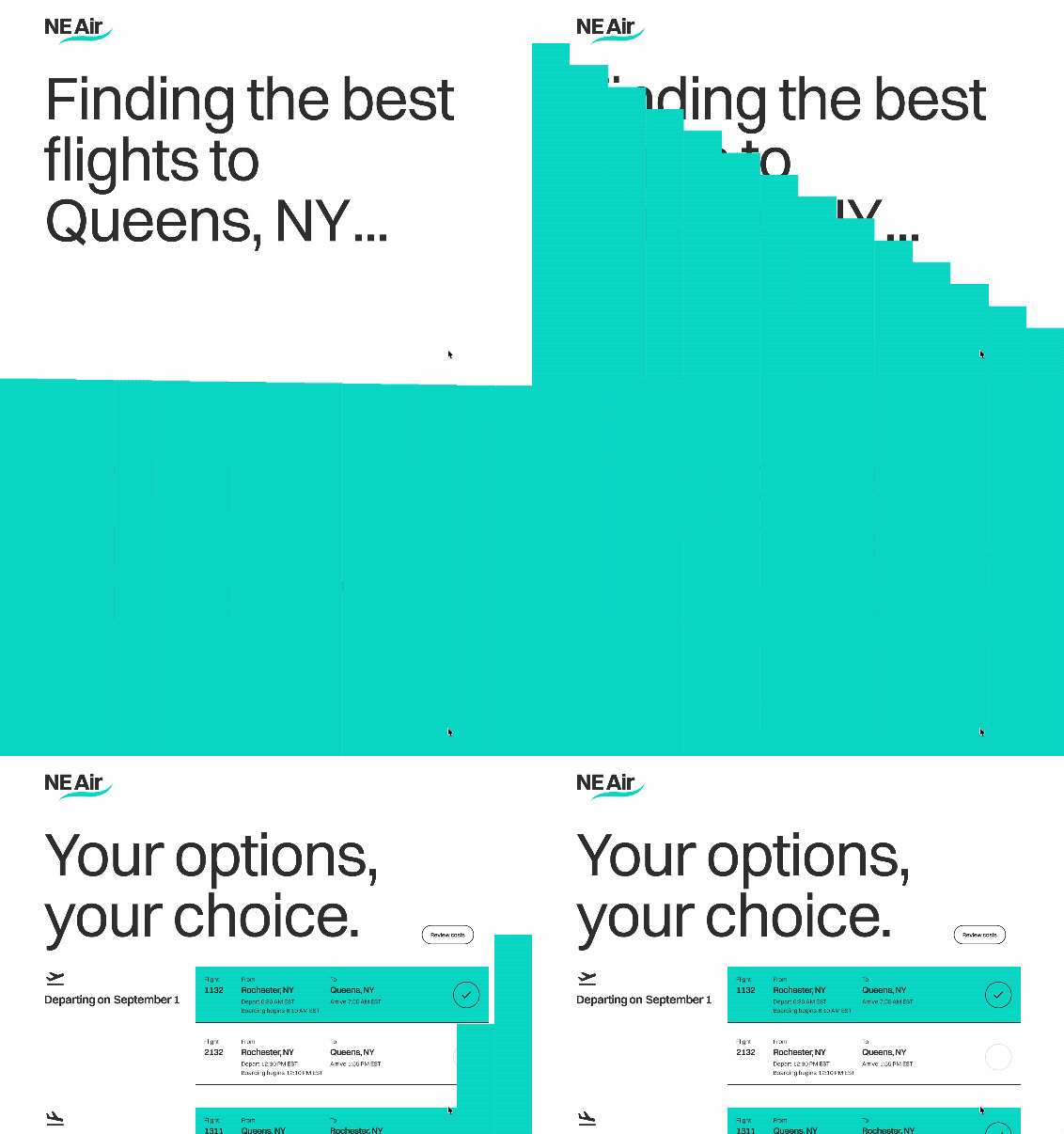
Since my designs are pretty minimal, I wanted the transitions between screens to be interesting and unique. Generally, every transition follows a longer Ease-in-and-out-Back style, with the position of the elements on the screen either moving off the viewport, or moving upwards and fading out of the experience.
To prototype this, I used transition frames and consistent layer naming to keep the elements consistent during Smart Animate. Whenever I protoype inside of Figma, layer naming is a convention I always follow, to keep smooth, beautiful animations.
Design System
Components & Consistency
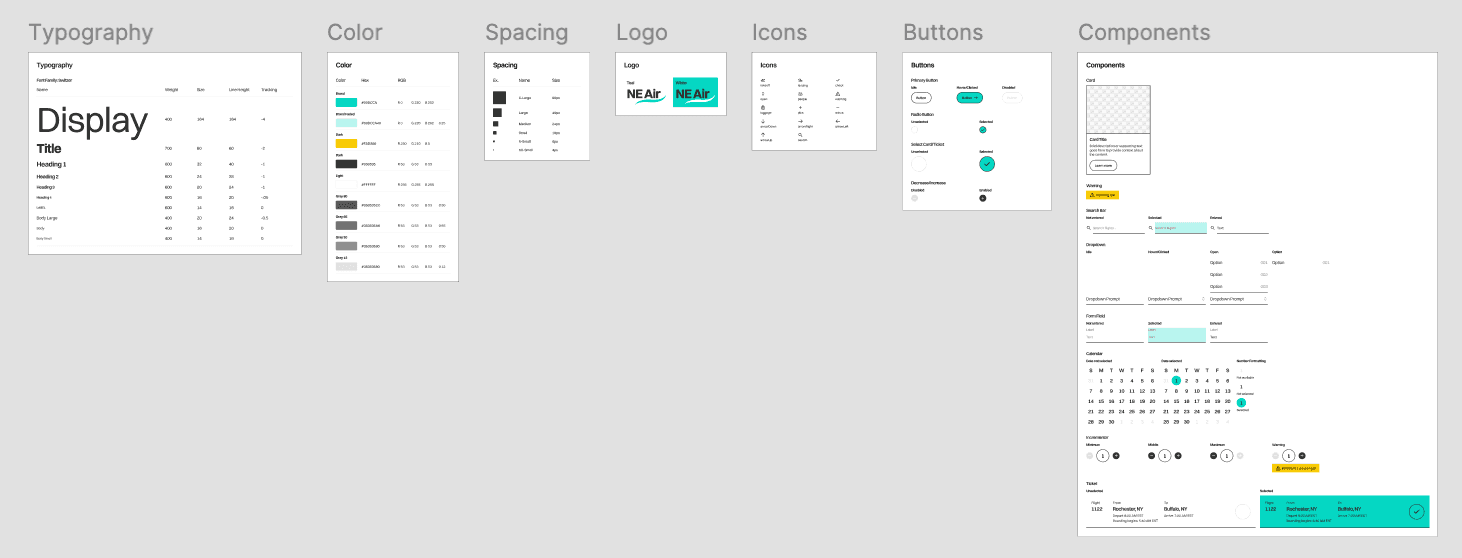
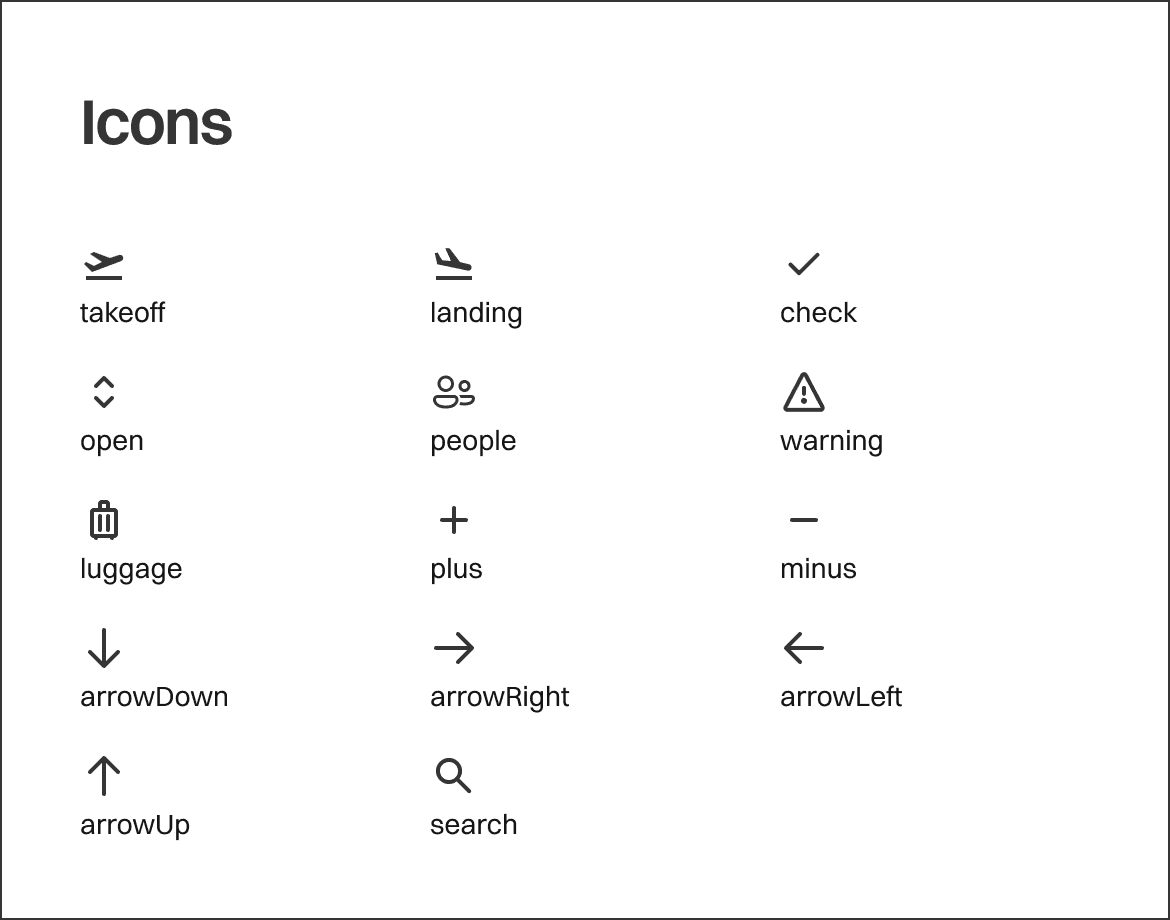
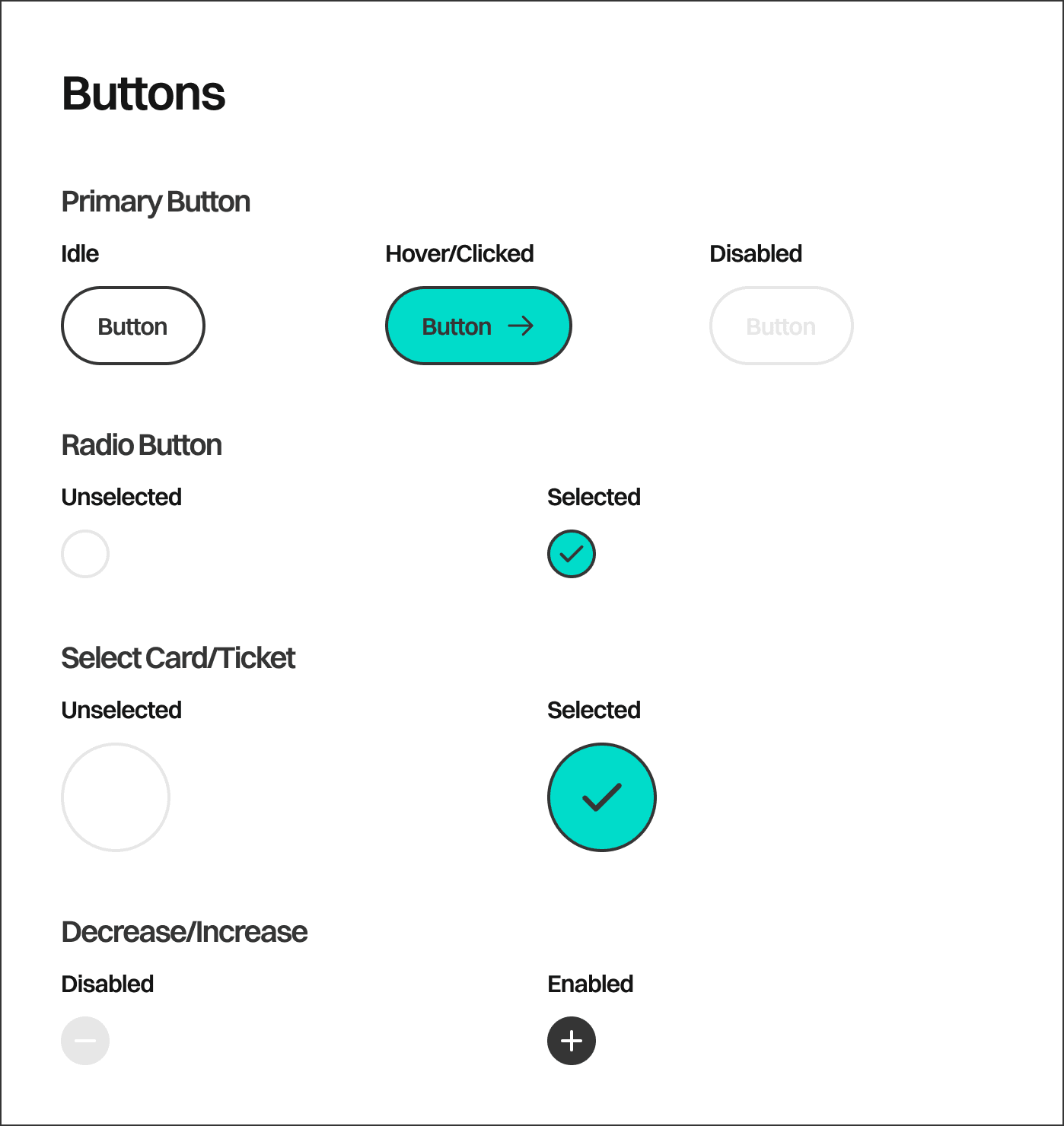
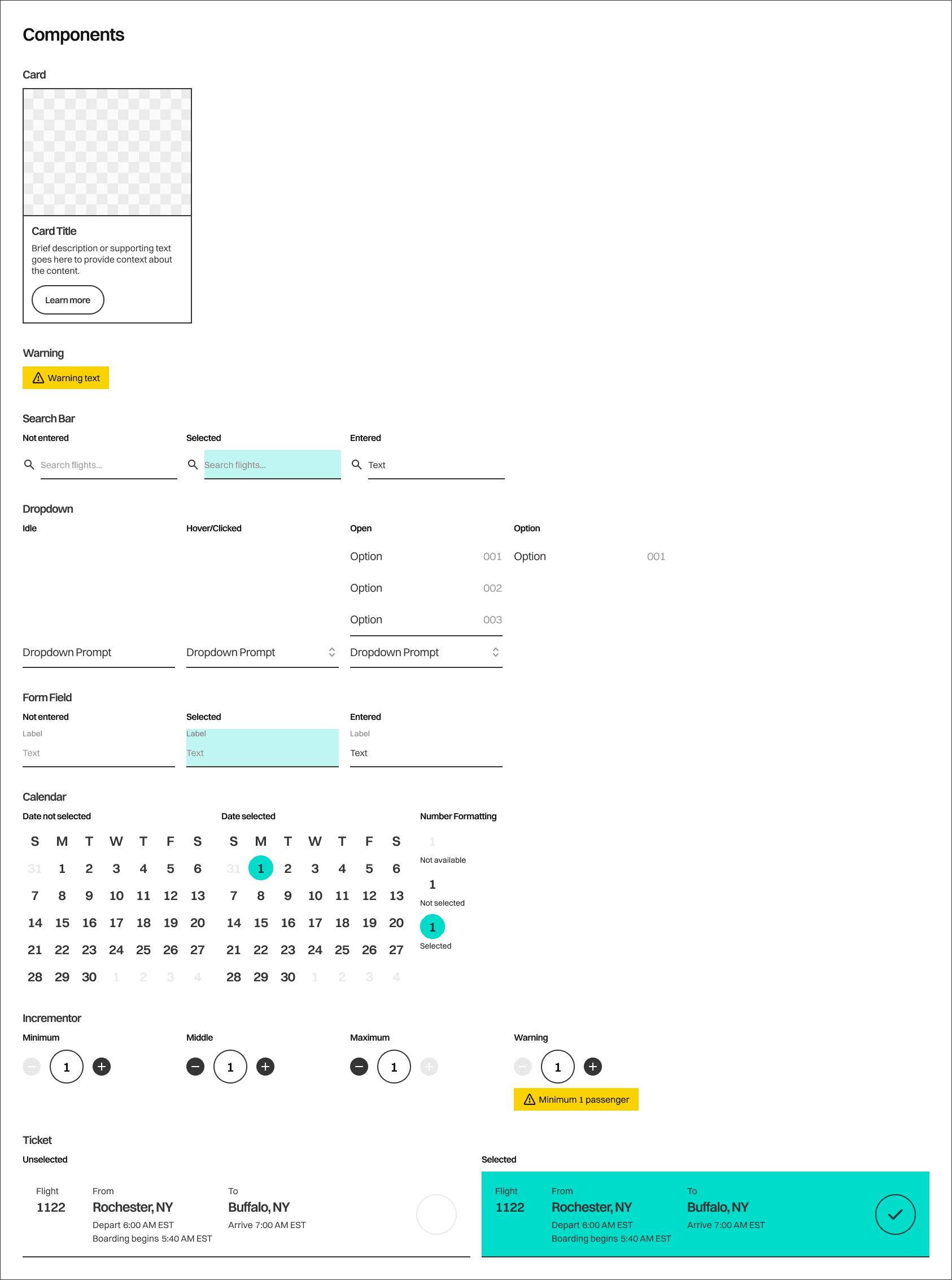
After finishing the main flow, designs, and prototype, I moved on to setting up my design system in the Figma file. I created organized tables for Typography, Color, Icons, Buttons, and more, all of them listing out important specifics such as the token name, RGB and hex values, states, and variants.
I also created some fake components that weren't used in my design, but could be used in a design under the same system, such as a basic card with image and text and a search bar. Other interactable components such as form fields, dropdowns, tickets, warnings, and incrementors were all laid out as well.
Wrapping Up
What I Learned
This wasn't my first time creating a design system, but it's probably the most organized one I have made. This project instilled a lot of good habits into my design process, such as using variables and scoping them, creating text and color styles, and keeping layer names consistent across designs. Since I was working on the designs for another big project, these habits came in handy for both projects.
This is also a better example of UI animation than my other projects. While not everything is consistent, it's interesting and unique, making for an overall better user experience.
I always love making complicated prototypes in Figma, such as Space Invaders and Tic-Tac-Toe, so I was used to advanced usage of variables and components. While this project wasn't as complex as others, it was a very good use of my time to create a full design flow, prototype it, and think about consistency and reproducibility with a design system.
Throughout this class, I had to study and use other design systems, which is great experience for industry, and joining existing systems. I believe that this project has prepared me for my future as a designer fairly well, and I look forward to either using or creating more design systems in the future.